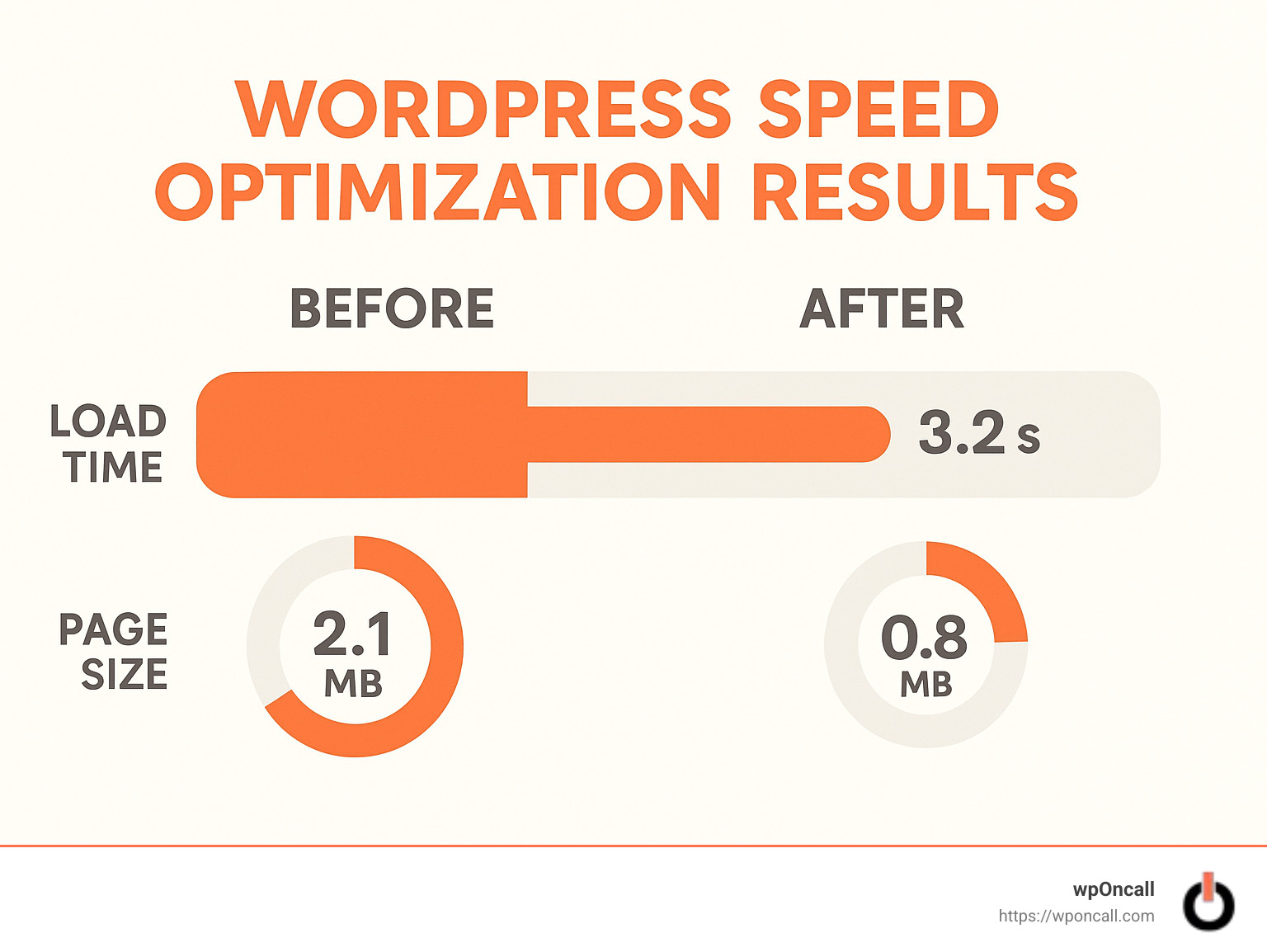
Turbocharge Your WordPress: A Speed Optimization Guide
Why Your WordPress Site Speed Makes or Breaks Success
WordPress speed optimization guide refers to the systematic process of improving your WordPress website’s loading time and overall performance. Here’s a quick summary of the essential optimization steps:
- Choose quality hosting with latest PHP version support
- Install a caching plugin like WP Rocket or WP Fastest Cache
- Optimize images through compression and proper sizing
- Minimize plugins by removing unnecessary ones
- Use a lightweight theme optimized for performance
- Enable a CDN (Content Delivery Network)
- Clean your database regularly
- Update WordPress core, themes and plugins
Is your WordPress site loading like it’s stuck in digital molasses? You’re not alone. Studies show that 40% of visitors will abandon a website if it takes more than 3 seconds to load. That’s potential customers and revenue disappearing before your site even appears on their screen.
A slow WordPress site doesn’t just frustrate visitors—it actively harms your business. Google uses page speed as a ranking factor, meaning slower sites get pushed down in search results. Plus, for every second delay in mobile page load, conversions can drop by up to 7%.
The good news? Most WordPress speed issues are fixable without needing to be a technical wizard.
I’m Kevin Gallagher, and with over fifteen years of experience optimizing more than 2,500 WordPress websites, I’ve developed a comprehensive WordPress speed optimization guide that has helped businesses transform sluggish sites into lightning-fast digital assets that convert better and rank higher.
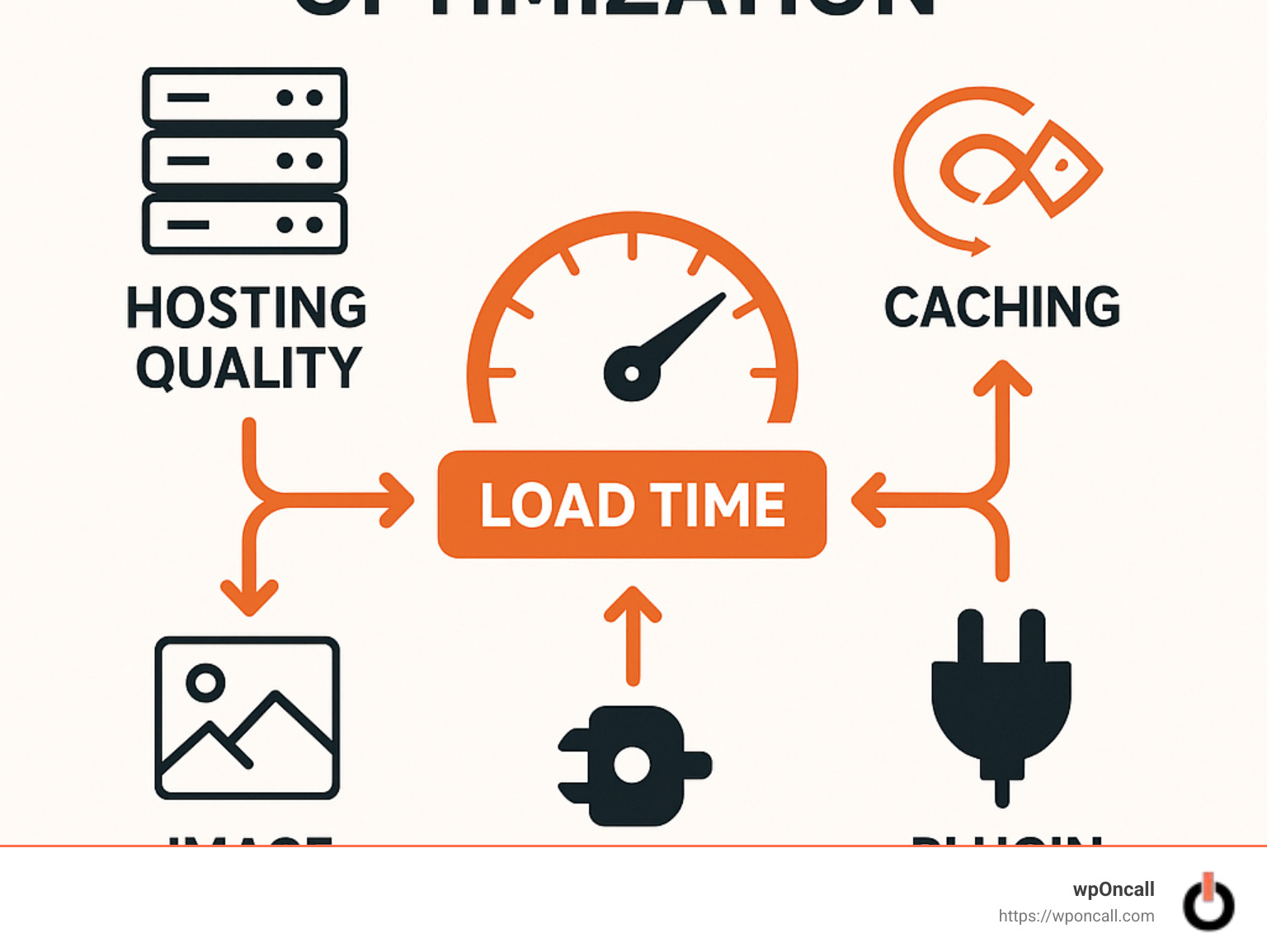
WordPress Speed Optimization Guide: Core Principles
When it comes to speeding up your WordPress site, understanding a few fundamental principles can make all the difference. Think of these as the foundation upon which all your optimization efforts will be built.
Google has made these principles concrete through what they call Core Web Vitals—specific measurements that directly impact how your site performs in search rankings and user experience.
The three key Core Web Vitals you need to know are:
-
Largest Contentful Paint (LCP): This measures how quickly the main content of your page loads. For visitors to stick around, your LCP should happen within 2.5 seconds of when someone clicks on your link.
-
First Input Delay (FID): This tracks how responsive your site is when a visitor tries to interact with it. A smooth experience requires an FID under 100 milliseconds—anything longer feels sluggish to users.
-
Cumulative Layout Shift (CLS): Ever had elements jump around while you’re trying to read a page? That’s what CLS measures. Keep it under 0.1 to prevent that frustrating experience.
Another critical measurement is Time to First Byte (TTFB)—how long it takes for the first piece of your website to reach a visitor’s browser. Aim for under 200ms here for optimal performance.
Your hosting quality directly impacts all these metrics. Sites running on PHP 8 or higher often perform 2-3 times faster than those on older versions. Modern protocols like HTTP/2 and HTTP/3 also make a huge difference by allowing multiple parts of your site to load simultaneously, rather than in a queue.
| Page Load Time | Conversion Rate Impact | Bounce Rate Impact |
|---|---|---|
| 1-2 seconds | Benchmark | Benchmark |
| 3 seconds | 7% decrease | 32% increase |
| 4 seconds | 11% decrease | 90% increase |
| 5 seconds | 17% decrease | 106% increase |
| 6+ seconds | 25%+ decrease | 135%+ increase |
Source: Google/SOASTA Research, 2017
Why Every Millisecond Matters
“Does a second here or there really matter?” I hear this question often, and the answer might surprise you.
A single second delay can reduce your conversions by 7%. Let’s put that in perspective: if your online store makes $100,000 daily, that one-second delay could cost you $2.5 million in lost sales annually. That’s not a typo—one second equals millions in potential losses.
The stakes get even higher on mobile devices. With more people browsing on phones than desktops, and Google’s mobile-first indexing determining search rankings, your site’s performance on smaller screens directly impacts your visibility online.
According to research from the Aberdeen Group, when your page takes just one extra second to load:
– Visitors view 11% fewer pages
– Customer satisfaction drops by 16%
– Conversions decrease by 7%
These aren’t just technical metrics—they’re business outcomes that affect your bottom line. Scientific research on page-speed consistently shows that faster sites win more customers and make more money.
Factors That Slow a WordPress Site Down
Before we can fix speed problems, we need to identify what causes them. In my 15+ years optimizing WordPress sites, these are the most common culprits I’ve encountered:
Heavy, feature-packed themes often include dozens of features you’ll never use—but each one adds code that slows down your site. Those fancy demos looked great, but they came at a performance cost you’re now paying.
Plugin overload happens gradually. You add plugins one by one, each solving a specific problem, until suddenly your site is crawling. Some plugins make dozens of database queries per page or load massive JavaScript files on every single page view.
Server latency is often overlooked but critically important. Bargain hosting might save you a few dollars monthly while costing you thousands in lost revenue due to slow response times.
Unoptimized images are perhaps the most common speed killer I see. That beautiful 5MB header image might look spectacular, but it’s murderous for your load times—especially on mobile connections.
Database bloat accumulates over time like digital dust. Post revisions, trashed items, spam comments, and expired transient options pile up, making database queries slower with each passing month.
When we start optimizing your WordPress site, we’ll address each of these issues systematically. The good news? Almost every speed problem has a solution that doesn’t require a computer science degree to implement.
Step-by-Step Optimization Checklist
Ready to transform your sluggish WordPress site into a speed demon? Let’s break this down into manageable steps that build upon each other. Before diving in, you’ll want to establish your starting point—think of it as taking a “before” picture in your speed change journey.
Grab your baseline metrics using tools like GTmetrix, PageSpeed Insights, or WebPageTest. These tools will give you concrete numbers showing exactly where your site stands now. This way, you can measure your improvements and actually see how far you’ve come after implementing our WordPress speed optimization guide.
Pre-Optimization Steps: Safety First
I can’t stress this enough—before tweaking a single setting on your site, protect your work with these essential safety measures:
Always create a complete backup of your entire WordPress installation. This includes all your files and your database. Think of it as your safety net—if anything goes sideways, you can restore your site to its previous state with just a few clicks.
Whenever possible, set up a staging environment to test your changes. This creates a private copy of your site where you can experiment freely without affecting your live site that visitors see. It’s like having a dress rehearsal before the main performance.
For backups, I recommend using a reliable plugin like UpdraftPlus. It makes the process nearly foolproof, with simple backup and restore functions. As the WordPress.org plugin directory puts it, “Backup your WordPress website with the world’s highest-rated and most popular backup plugin.”
Don’t skip checking your WordPress Site Health (find it under Tools > Site Health). This built-in tool can identify performance issues before you even start optimizing.
Finally, keep a simple log of what you change and when. This doesn’t need to be fancy—even a basic text document will help you pinpoint the cause if something unexpected happens later.
As the WordPress Developer Resources wisely advise, “If you want to save time, always backup your WordPress installation before major changes.” This simple habit can save you hours of troubleshooting headaches down the road.
Hosting & PHP Upgrades
Your hosting environment is the foundation of your site’s performance. No amount of optimization magic can overcome fundamentally inadequate hosting—it would be like trying to build a speed boat with a leaky rowboat as your starting point.
First, make sure you’re on the right type of hosting for your needs. Shared hosting is economical but comes with limited resources. A VPS (Virtual Private Server) offers dedicated resources at a moderate price. Dedicated servers provide maximum performance and control, while managed WordPress hosting is specifically optimized for WordPress with built-in performance features.
One of the simplest yet most effective upgrades you can make is moving to PHP 8+. The performance improvements are dramatic—benchmarks show PHP 8.3 is 42% faster than previous versions. If you’re running an older version, contact your host about upgrading.
Enable FastCGI Process Manager (PHP-FPM) if available. This alternative PHP implementation can slash your backend processing time by more than half, making your server much more responsive.
Don’t forget to activate OPcache. This clever PHP extension stores precompiled script bytecode in memory, eliminating the need to load and parse scripts on each request. The result? Significantly faster processing times.
Consider your server location relative to your audience. A server in California will serve visitors from San Francisco much faster than one in Europe or Asia. If most of your traffic comes from a specific region, choose a data center close to that area for best results.
Image Optimization That Works
Images often account for 50-80% of a webpage’s total size. Optimizing them can dramatically improve load times without sacrificing visual quality.
Use the right image format for each situation. JPEG works best for photographs and images with many colors. PNG is ideal when you need transparency. For modern browsers, WebP offers superior compression (30-35% smaller than JPEG), while AVIF is the newest format with even better compression ratios.
Always resize images before uploading them. Don’t make your server and your visitors’ browsers work harder by downloading a 4000px-wide image that will only display at 800px. This simple step can reduce file sizes by 75% or more.
Implement an image optimization plugin like Smush or Imagify to automatically compress images as you upload them. These tools can also optimize all the existing images in your media library with just a few clicks.
Find the sweet spot for compression levels. Most optimization tools let you choose how aggressively to compress images. Too much compression can make images look fuzzy or pixelated, while too little won’t give you the speed benefits you’re looking for.
Make sure your theme uses responsive images with the srcset attribute. This tells browsers to serve the appropriate image size based on the visitor’s device, rather than loading the full-size image for everyone.
Implement lazy loading for images that appear lower on your pages. This technique only loads images when they’re about to enter the viewport, rather than loading everything when the page first loads. The result? Faster initial page loads and less wasted bandwidth.
As our research confirms, “Image optimization can reduce image file sizes by up to 80% without noticeable quality loss, greatly improving load times.”
Caching & CDN Setup
Caching creates static versions of your dynamic WordPress content, dramatically reducing the processing time needed to generate and serve pages. Think of it as preparing meals in advance instead of cooking from scratch for every visitor.
Start with browser caching, which tells visitors’ browsers to store certain files locally. This way, returning visitors don’t need to download the same resources again. You can implement this through your caching plugin or by adding rules to your .htaccess file.
Set up page caching to store dynamically generated HTML pages as static files. Instead of WordPress processing PHP and making database queries for every visitor, it can serve pre-generated HTML files. Popular plugins that handle this include WP Rocket (premium), WP Fastest Cache (free and premium versions), and W3 Total Cache (free).
For sites with heavy database usage, consider implementing object caching with Redis or Memcached. This stores the results of complex database queries, reducing the load on your database server and speeding up repeat queries.
A Content Delivery Network (CDN) can make a world of difference, especially if you have a global audience. CDNs store copies of your static files on servers worldwide, delivering them from the location closest to each visitor. This can reduce latency by up to 50%. Popular options include Cloudflare, BunnyCDN, and StackPath.
Make sure to configure your CDN correctly so all static assets (images, CSS, JavaScript) are being served through the network. Most CDN plugins make this process straightforward.
The WP Fastest Cache developer explains, “After installing the plugin, you need to enable Cloudflare integration in the settings and enter your Cloudflare API key to connect the services.” You can find a guide from the plugin developer for detailed setup instructions.
According to our research, “Persistent page caching can improve performance several hundred times.” The improvement is especially noticeable for visitors who are geographically distant from your hosting server.
Streamlining Plugins, Themes & Scripts
Every plugin and theme feature adds code that needs to be processed. Think of your WordPress site like a car—the more unnecessary weight you add, the slower it goes.
Start by auditing your plugins with a tool like Query Monitor. This will help you identify which plugins are creating performance bottlenecks. Be ruthless about deactivating and deleting plugins you don’t absolutely need. That social sharing plugin that adds 12 different networks? If your analytics show visitors only use two networks, replace it with something lighter.
Choose performance-optimized themes like GeneratePress, Astra, or OceanWP. These are built with speed in mind from the ground up. They avoid the bloat that comes with many “all-in-one” themes that try to be everything to everyone.
Minimize and defer JavaScript using plugins like Asset Cleanup or Perfmatters. These tools allow you to remove unnecessary scripts from pages where they’re not needed, defer non-critical JavaScript to load after the page renders, and combine multiple JavaScript files into one to reduce HTTP requests.
Optimize your CSS loading by inlining critical CSS needed for above-the-fold content, loading non-critical CSS asynchronously, and minimizing and combining CSS files where appropriate.
Disable unnecessary features that many themes and plugins load by default. WordPress emojis, embeds, dashicons for non-logged-in users, and comment functionality on pages that don’t need it all add weight to your pages. Many optimization plugins let you toggle these features off with a simple checkbox.
“Removing unused plugins and themes can reduce database bloat and improve site performance by up to 25%,” according to our research. It’s like cleaning out your garage—suddenly, you have room to breathe again.
Database Housekeeping
Your WordPress database is like a closet—over time, it collects clutter that slows everything down. Regular maintenance keeps things running smoothly.
Clean up post revisions that WordPress automatically saves. While it’s handy to have a history of your edits, do you really need 50 revisions of each post? Limit these in your wp-config.php file with: define('WP_POST_REVISIONS', 5); to keep just the most recent changes.
Remove spam and trashed comments from your database. Even though they’re not displayed on your site, they still take up space and can slow down queries.
Delete expired transients that sometimes don’t get cleaned up automatically. These temporary storage items can accumulate over time, especially if a process that created them didn’t finish properly.
Optimize your database tables regularly with a plugin like WP-Optimize. This repairs and defragments your tables, similar to defragmenting a hard drive. The result is faster database queries and less wasted space.
If your tables are still using the older MyISAM storage engine, convert them to InnoDB for better performance and reliability. Most modern hosting environments support InnoDB, which handles concurrent connections much better than MyISAM.
Pay special attention to cleaning autoloaded options in your wp_options table. This data loads on every page, so keeping it lean is crucial. Aim to keep autoloaded options under 800 KB for optimal performance.
One site owner in our research reported, “Cleaning up 695,000 corrupt transient rows from wp_options” dramatically improved their site’s performance. Sometimes the biggest performance gains come from the most unexpected places!
Following this WordPress speed optimization guide step by step will transform your site’s performance, delighting your visitors and boosting your search rankings. And remember, if you ever feel overwhelmed, the WordPress experts at wpOncall are just a click away to help make your site lightning fast.
Advanced Performance Tactics
Ready to take your WordPress speed to the next level? Once you’ve covered the basics, these advanced tactics can transform your site from “pretty fast” to “wow, that was instant!” Let’s explore some powerful techniques that separate the good sites from the truly exceptional ones.
Server-Level Tweaks
Your hosting environment holds untapped potential that goes beyond what plugins can achieve. These optimizations might require a conversation with your hosting provider or some server-level access, but the performance gains are worth it.
Implementing Varnish or NGINX FastCGI Cache can dramatically outperform even the best plugin-based caching solutions. These server-level caching systems store fully-rendered pages in memory, ready to serve instantly to visitors without touching PHP or your database.
If your site runs on NGINX (and many premium hosts do), optimizing your configuration can yield impressive results. Microcaching temporarily stores dynamic content for just a few seconds—perfect for high-traffic sites. FastCGI buffering improves how your server handles PHP processes, while Gzip or Brotli compression reduces file sizes before sending them to visitors.
Memcached or Redis work wonders for sites with complex database queries. These in-memory data stores keep frequently accessed database results ready to serve instantly. One client saw their database load time drop by 80% after implementing Redis object caching on their WooCommerce store.
Don’t overlook the power of proper HTTP headers. Strategic use of Cache-Control, Expires, and ETag headers tells browsers exactly how long they should keep your assets, preventing unnecessary downloads. As one developer put it, “Proper HTTP headers are like giving the browser an instruction manual for efficient loading.”
Finally, a well-configured PHP OPcache stores your site’s PHP code in a pre-compiled state, eliminating the need to process the same code over and over. This alone can cut PHP execution time in half.
Front-End Power Plays
While server optimizations focus on generating your pages quickly, front-end tactics ensure visitors’ browsers render those pages efficiently.
Critical CSS might be my favorite front-end optimization. It extracts just the CSS rules needed to display what visitors see first (the “above-the-fold” content) and inlines it directly in your HTML. This allows the page to render almost instantly while the rest of your styles load in the background. The visual impact is dramatic—users see your content immediately rather than staring at a blank screen.
Deferring JavaScript is another game-changer. Most JavaScript isn’t needed for the initial page display, so why let it block rendering? By adding a simple defer attribute to script tags, you tell the browser, “Load this after you’ve rendered the page.” Your visitors start reading and interacting while scripts load quietly in the background.
Resource hints give browsers advance notice about resources they’ll need soon. With preconnect, you establish connections to external domains (like font providers or analytics) early. Using prefetch tells browsers to grab resources they’ll need for the next page when they have spare time. And preload signals the most critical assets for the current page.
Many WordPress sites load Google Fonts, creating extra connection overhead. By self-hosting your fonts, you eliminate those external requests. One client shaved off 300ms just by bringing their fonts in-house—a small change with noticeable impact.
Smart font loading strategies prevent the dreaded “flash of invisible text.” Using font-display: swap shows visitors a system font until your custom font loads. Subsetting fonts to include only the characters you actually use can reduce font files by 50% or more. And do you really need six weights of that fancy font? Probably not.
Scaling for Traffic Spikes
Nothing’s worse than optimizing your site to perfection only to have it crash during your biggest marketing campaign. These scaling strategies help maintain performance even when traffic surges.
Auto-scaling cloud hosting automatically allocates more resources when your traffic increases. Instead of paying for maximum capacity all the time, you only pay for what you need when you need it. Services like AWS, Google Cloud, and many WordPress-specific hosts offer this flexibility.
A reverse proxy CDN takes CDN functionality to the next level. Beyond serving static assets, services like Cloudflare can cache and serve entire pages from their global network, drastically reducing the load on your origin server during traffic spikes.
For database-heavy sites, HyperDB allows WordPress to use multiple database servers, distributing queries across them. This prevents your database from becoming the bottleneck during high-traffic periods.
Load balancing distributes incoming traffic across multiple servers, ensuring no single server gets overwhelmed. It’s like having multiple checkout lines at the grocery store instead of forcing everyone through a single lane.
Smart site architects build in redundancy for critical components. If one server fails, traffic automatically routes to healthy servers with no downtime. As our team at wpOncall often reminds clients, “The best emergency plan is the one you create before the emergency happens.”
These advanced tactics require more technical expertise, but they deliver extraordinary results. Our WordPress speed optimization guide wouldn’t be complete without them. And remember, you don’t have to implement everything at once—even picking one or two advanced techniques can significantly improve your site’s performance.
Measuring & Monitoring Results
You wouldn’t start on a fitness journey without stepping on the scale first, right? The same principle applies to your WordPress speed optimization guide efforts. Without proper measurement, you’re essentially optimizing in the dark.
Think of performance monitoring as your website’s health tracker. It tells you what’s working, what isn’t, and when it’s time to make adjustments. Let’s explore how to effectively measure your optimization success.
Before diving into tools, remember this golden rule: always establish baseline metrics before making any changes. It’s like taking a “before” picture – without it, you’ll never truly appreciate how far you’ve come!
Google PageSpeed Insights is your first stop on the measurement journey. This powerful tool provides both laboratory data (controlled tests) and field data (real-user experiences) about your site’s performance. What makes it particularly valuable is that it doesn’t just identify problems – it suggests specific solutions custom to your site.
For a deeper dive, Lighthouse audits (available right in Chrome DevTools) break down your performance into actionable categories. It’s like having a website performance coach in your browser, pointing out exactly where you need to improve.
Don’t stop at a single testing tool. WebPageTest offers something special: the ability to test your site from multiple geographic locations and connection types. Its detailed waterfall charts reveal exactly how your page loads, element by element. This is invaluable for identifying those sneaky bottlenecks that might not show up in other tools.
And don’t forget about Google Search Console! It provides real-user data on your Core Web Vitals performance, showing you how actual visitors experience your site in the wild. This “field data” often tells a different story than controlled tests, so pay close attention to these metrics.
Testing Progress Throughout Your WordPress Speed Optimization Guide
Optimization isn’t a one-and-done task – it’s a journey of continuous improvement. As you implement changes from your WordPress speed optimization guide, regular testing becomes your compass.
After each significant change to your site, run a fresh set of tests. This methodical approach helps identify which optimizations deliver the biggest bang for your buck. You might be surprised to find that some “minor” tweaks yield dramatic improvements, while other more complex changes barely move the needle.
Geography matters in website performance. Your site might load lightning-fast from your office in Portland but crawl for visitors in Paris. Test from multiple locations to ensure a consistent experience for all your visitors.
Device type and connection speed dramatically impact performance as well. Mobile users often experience your site very differently than desktop users, especially on slower connections. Make sure your testing regimen includes various devices and simulated connection speeds to capture the full picture.
While laboratory data from testing tools provides valuable insights, don’t lose sight of what really matters: how real users experience your site. Field data, collected from actual visitors, should be your ultimate performance benchmark. A perfect PageSpeed score means little if real users are still experiencing slow load times.
Focus particularly on Core Web Vitals – Largest Contentful Paint (LCP), First Input Delay (FID), and Cumulative Layout Shift (CLS). These metrics directly impact both user experience and search rankings, making them worthy of special attention.
One important caution from our experience: blindly following performance tool recommendations can sometimes lead you astray. As one developer wisely noted, “Following third-party tools’ strict performance rules to the letter can leave you with a blank page of raw text for maximum speed.” The goal isn’t just high scores – it’s a fast site that still delivers an excellent user experience.
Ongoing Monitoring Tools
Once you’ve optimized your site, you’ll want to maintain those hard-won gains. Setting up ongoing monitoring helps catch performance regressions before they impact your visitors and your bottom line.
Uptime monitoring is your first line of defense. Services like Pingdom or UptimeRobot will alert you immediately if your site goes down, allowing you to address issues before most visitors even notice. These tools can also track response times, giving you early warning if your site starts to slow down.
Performance alerts take monitoring a step further by notifying you of sudden changes in load time or other key metrics. This proactive approach means you’ll know about problems before your customers start complaining – or worse, abandoning your site.
For deeper insights, Application Performance Monitoring (APM) tools like New Relic provide detailed information about what’s happening on your server. They can identify bottlenecks in your code, database queries, or third-party services that might be slowing things down.
Within WordPress itself, Query Monitor is an invaluable plugin that helps identify slow database queries, inefficient hooks, and problematic plugins. It’s like having x-ray vision into your WordPress installation, revealing performance issues that would otherwise remain hidden.
Don’t overlook your server logs, either. Regular reviews can reveal errors or unusual patterns that might indicate performance problems. Many hosting providers offer log analysis tools that make this process much more manageable.
As our team at wpOncall has seen time and again, regular monitoring is absolutely crucial because new plugins, theme updates, or content additions can introduce performance issues over time. What’s fast today might be sluggish tomorrow if you’re not keeping an eye on things.
Your website’s performance isn’t just a technical metric – it directly impacts user experience, conversion rates, and ultimately, your business success. With proper measurement and monitoring, you can ensure your WordPress speed optimization guide efforts continue to pay dividends long into the future.
Frequently Asked Questions about WordPress Speed
How often should I run speed tests?
Speed testing isn’t a “set it and forget it” task—it’s more like checking your car’s oil regularly to prevent engine problems.
For most WordPress site owners, monthly testing provides a good balance between vigilance and practicality. However, you should absolutely run additional tests after making any significant changes to your site. Just installed that shiny new plugin everyone’s talking about? Run a test. Switched to a new theme? Definitely test. Added a fancy carousel to your homepage? You guessed it—time for a speed test.
High-traffic sites or ecommerce stores where speed directly impacts revenue should consider weekly testing. Think of it as preventive medicine—catching small performance issues before they become conversion-killing problems.
When is it time to upgrade hosting?
Your hosting environment is like the foundation of a house—if it’s shaky, nothing you build on top will be stable. Here are clear signs it’s time to invest in better hosting:
Persistent slow server response times despite your optimization efforts. If your Time to First Byte (TTFB) consistently exceeds 600ms, your server is likely the bottleneck.
Regular downtimes or slowdowns during busy periods. If your site crumbles under pressure when you need it most, that’s a problem.
Unresponsive or unhelpful hosting support when you raise performance concerns. Good hosts should be partners in your success.
You’ve optimized everything else but still see disappointing performance. When you’ve squeezed every millisecond from your WordPress configuration but still have a slow site, your hosting is the likely culprit.
Your business depends on site performance. If you’re running an ecommerce store or lead generation site where speed directly impacts revenue, premium hosting is an investment, not an expense.
The impact of quality hosting can’t be overstated. As one case study in our research revealed, “Sites on WP Engine’s infrastructure have shown an average speed improvement of 68%” compared to generic hosting. The right hosting environment can transform your site’s performance more dramatically than almost any other single change.
What if my site is still slow after following the WordPress speed optimization guide?
Even after implementing every recommendation in our WordPress speed optimization guide, some sites may still struggle with performance issues. Don’t get discouraged—this usually means there’s something unique about your site that requires special attention.
Consider bringing in a performance specialist who can take a deep dive into your specific setup. Sometimes, issues that aren’t obvious to the general eye become immediately apparent to an expert who’s seen hundreds of WordPress configurations.
In some cases, particularly with older sites that have gone through multiple developers and accumulated technical debt, a fresh rebuild might actually be more cost-effective than trying to fix years of accumulated issues. It’s like renovating an old house—sometimes it’s easier to build new than to fix every problem in an aging structure.
Use specialized tools like New Relic to identify precise bottlenecks in your code execution. These tools can show you exactly where your site is spending time processing requests, often revealing issues that standard speed tests miss.
Don’t forget to examine external services. That marketing pixel, analytics script, or third-party commenting system might be dragging down your otherwise well-optimized site.
If you’re still stuck, the WordPress experts at wpOncall specialize in solving exactly these kinds of tricky performance problems. We’ve seen it all, and we’re ready to help identify and fix the unique issues affecting your site’s speed.
Conclusion
Speed isn’t just a technical metric—it’s the heartbeat of your website’s success. Throughout this WordPress speed optimization guide, we’ve explored how even small improvements can dramatically impact your visitors’ experience, your search rankings, and ultimately, your bottom line.
Think of optimization as tending a garden rather than building a wall. It requires ongoing care, attention, and adjustment as your site grows and evolves. New plugins, content, and WordPress updates will continually present fresh challenges to your site’s performance.
Let’s take a moment to reflect on the journey we’ve taken together. We started with understanding why speed matters—those critical seconds that determine whether a visitor stays or leaves. We explored the core principles that govern WordPress performance and methodically tackled each factor that might be slowing your site down.
The path to a lightning-fast WordPress site isn’t complicated, but it does require commitment:
Begin with a solid foundation of quality hosting and current PHP versions. This alone can transform your site’s performance, giving you the digital equivalent of moving from a crowded highway to an open expressway.
Implement thoughtful caching strategies that reduce the work your server needs to do. Remember how we discussed the dramatic improvements that can come from properly configured page caching? That’s the difference between cooking every meal from scratch and having delicious leftovers ready to heat and serve.
Optimize your images without sacrificing quality. Your beautiful visuals shouldn’t come at the cost of performance—they should improve the user experience, not detract from it.
Streamline your plugins and themes, keeping only what truly adds value to your site. Think of your WordPress installation like a backpack for a long hike—every unnecessary item just weighs you down.
Maintain a clean, efficient database that responds quickly to queries. Those regular housekeeping tasks we discussed pay dividends in performance.
Leverage a CDN to deliver your content from servers closer to your visitors, shrinking the digital distance between you and your audience.
And perhaps most importantly, test and monitor regularly to catch issues before they impact your visitors. The tools we’ve covered make this easier than ever before.
At wpOncall, we see the impact of these optimizations every day. We’ve watched businesses transform their online presence from sluggish to snappy, and seen the resulting improvements in engagement, conversions, and customer satisfaction. Our team of WordPress experts specializes in identifying performance bottlenecks and implementing the right solutions for your specific situation.
We understand that implementing all these optimizations might feel overwhelming, especially when you’re already busy running your business. That’s why we offer comprehensive WordPress support services—handling everything from daily updates and backups to performance optimization and security monitoring, all with the quick response times you deserve.
Every millisecond matters in today’s digital world. A faster site doesn’t just mean happier visitors—it means better SEO rankings, higher conversion rates, and ultimately, a stronger business.
Need a hand making your WordPress site as fast as it can be? Contact our WordPress support team for personalized assistance. We’re here to help your site reach its full potential.