


Your Guide to the Best WordPress Backup Solutions
wordpress backup solution: 6 Best Powerful Picks for 2025
Why WordPress Backups Are Critical for Your Business
Main Types of WordPress Backup Solutions at a Glance:
- Dashboard Plugins – User-friendly tools that live inside WordPress; available in both free and premium versions
- Real-Time Cloud Services – Independent dashboards that capture changes instantly and store everything safely off-site
- Security Suites with Backup Add-Ons – Combine automated backups with malware scanning and hardening features
- Host-Provided Snapshots – Daily server-level backups included with many quality hosting plans (great first layer of protection)
- Developer-Centric Tooling – Command-line or Git-based approaches for agencies and power users who need granular control
A reliable WordPress backup solution is the insurance policy every website owner needs but hopes never to use. Imagine working late into the night on your WordPress site when suddenly your screen goes blank—your site has crashed, and you don’t have any backups. This nightmare scenario happens more often than you might think, with hacking, server failures, botched updates, and simple human error being common culprits.
Without a proper backup strategy, you risk losing everything: your content, customer data, product listings, and the countless hours invested in building your online presence. The cost of downtime goes beyond lost sales—it damages customer trust and can take weeks to fully recover from.
What makes choosing the right backup solution challenging is the overwhelming number of options, each with different features and price points. Should you rely on your host’s automatic backups? Is a free plugin sufficient? Do you need real-time backups for your e-commerce site? These questions require thoughtful consideration based on your specific needs.
I’m Kevin Gallagher, founder of wpONcall, with over fifteen years of experience implementing reliable WordPress backup solutions for businesses of all sizes. Having managed backups for more than 2,500 WordPress websites, I’ve seen how the right backup strategy can mean the difference between a minor inconvenience and a business-crippling disaster.
Glossary for wordpress backup solution:
– WordPress backup services
– wordpress backup and restoration services
– wordpress how to backup
The High Cost of Data Loss
The statistics on data loss are sobering. When a WordPress site goes down without a backup, businesses face an average of $5,600 per minute in costs, according to industry research. This includes not just direct revenue loss but also recovery expenses, customer compensation, and long-term brand damage.
Common causes of WordPress site failure include:
- Plugin conflicts: When plugins don’t play nicely together, they can crash your entire site
- Malware infections: Hackers increasingly target WordPress sites due to their popularity
- Human error: A simple mistake like deleting the wrong file can bring everything down
- Server crashes: Even the best hosting providers experience occasional failures
- Failed updates: WordPress core, theme, or plugin updates can sometimes go wrong
One of our clients, a Santa Rosa e-commerce store, learned this lesson the hard way when a plugin update crashed their site during their busiest sales weekend. Without a backup, they estimated losses of over $20,000 in sales and weeks of work to rebuild product listings.
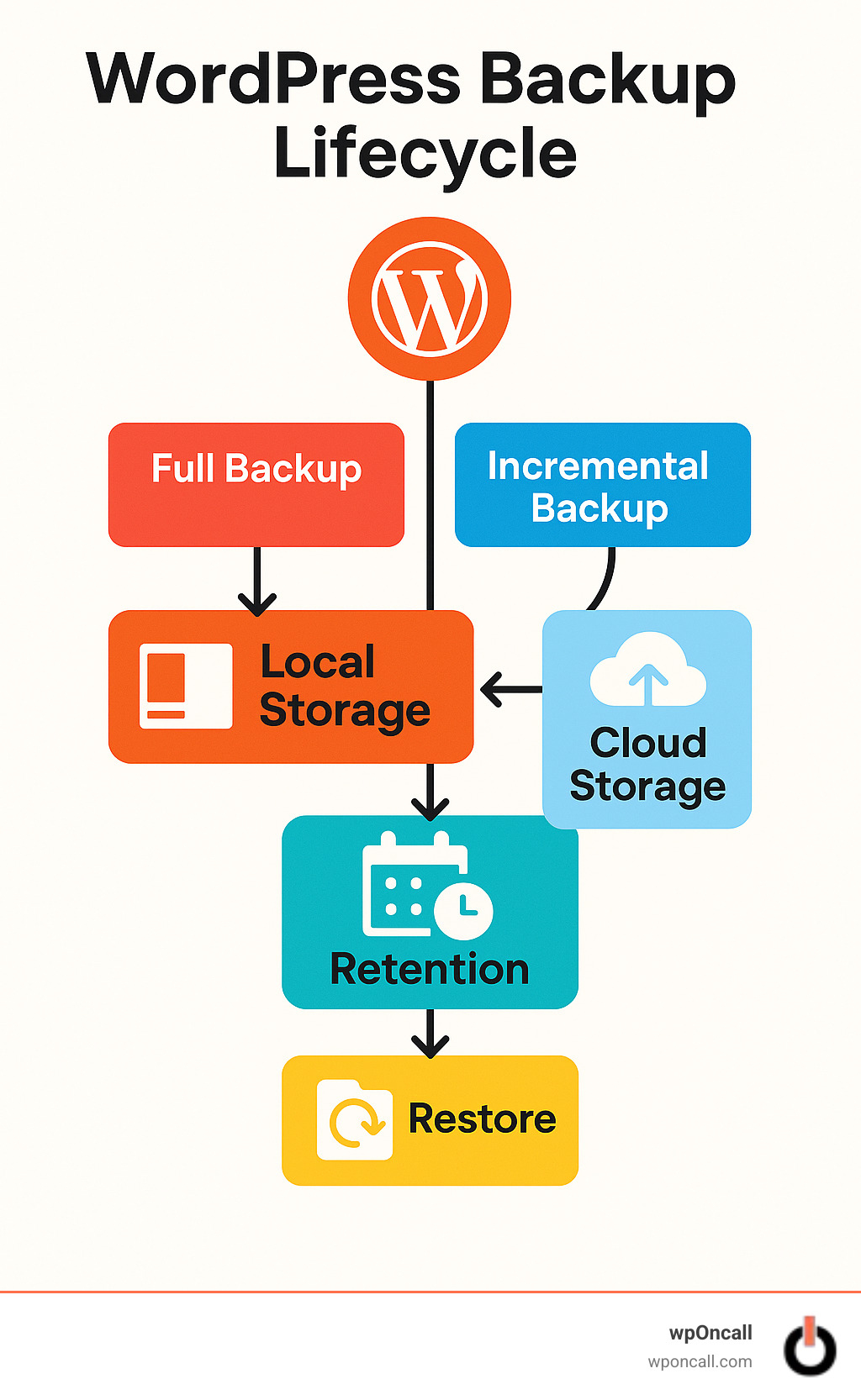
Backup Basics in 30 Seconds
Before diving into specific solutions, let’s clarify what a comprehensive WordPress backup solution should include:
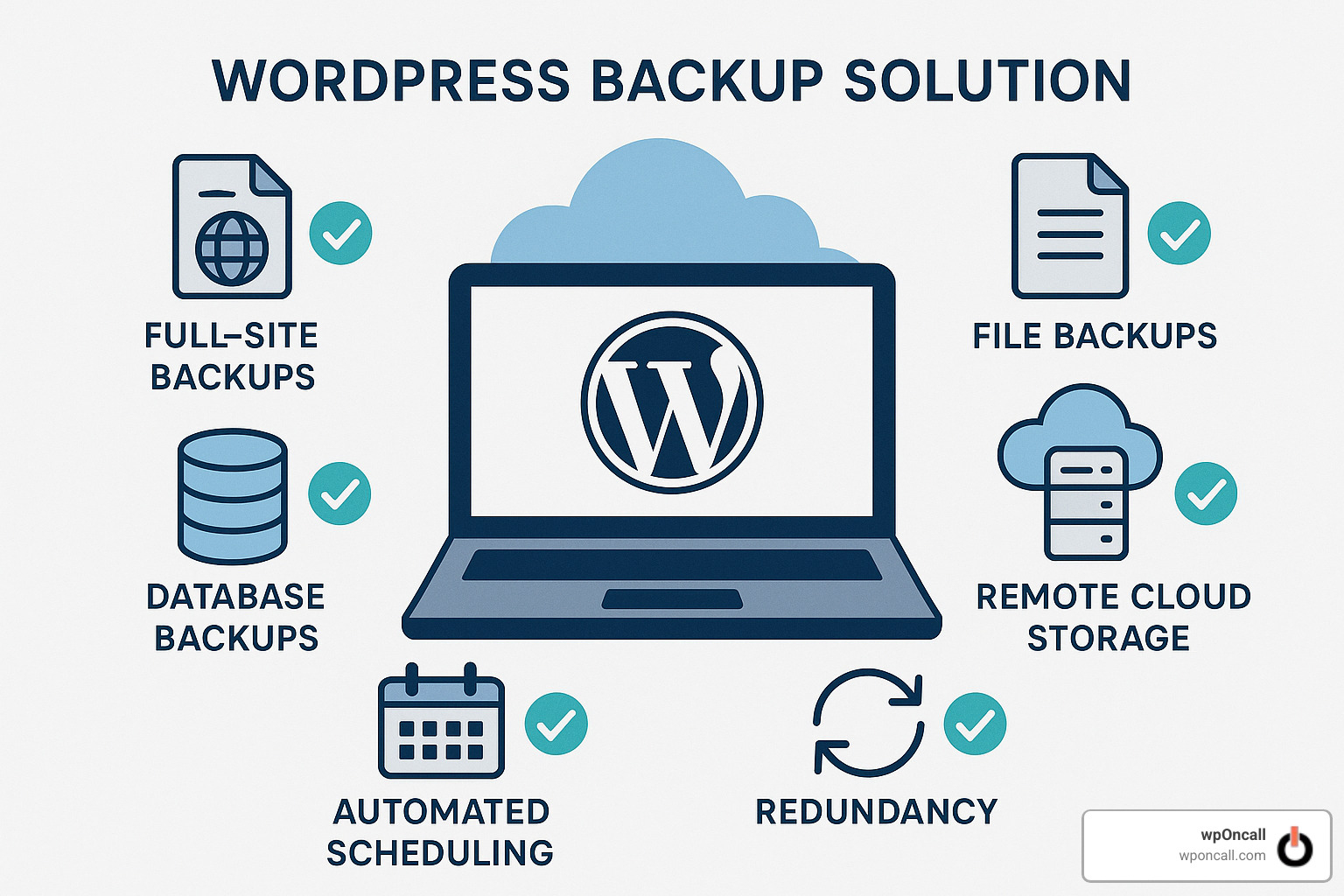
- Full-site backups: This captures everything—your WordPress core files, themes, plugins, uploads, and database
- Database backups: The database contains all your posts, pages, comments, and settings
- File backups: All your media, theme files, and custom code
- Remote storage: Backups should be stored off-site, away from your main server
- Automated scheduling: Set-and-forget functionality ensures you’re always protected
As experts in the field aptly put it: “Remember: the most expensive backup is the one you never did!” For more information on the importance of website backups, check out this comprehensive guide from WordPress.org.
What Makes an Effective WordPress Backup Solution?
I’ve seen it happen too many times – a client calls in a panic because their site is down, and they’re desperately hoping their backups actually work. The truth is, not all backup solutions deliver when you need them most. That moment of crisis is when the difference between a mediocre and excellent WordPress backup solution becomes painfully clear.
Think of your backup system as a safety net for your digital business. The best ones blend seamlessly into the background until that heart-stopping moment when everything goes wrong. At wpOncall, we often tell our clients, “The best backup is the one you never have to think about until you need it.” This simple philosophy has saved countless businesses from disaster over the years.
What truly makes a backup solution effective? It starts with redundancy – having multiple copies of your site stored in different locations. If one backup fails (and sometimes they do), you’ll have alternatives to fall back on. Your solution should also feature automation that handles scheduled backups without you needing to remember to run them manually. Trust me, manual backups are the first thing that slip through the cracks during busy periods.
Your backups aren’t just files – they’re your business’s lifeline. That’s why encryption is non-negotiable for protecting sensitive data during both transfer and storage. And when disaster strikes, restore speed becomes incredibly important – every minute of downtime costs you visitors and potential revenue.
For larger sites, incremental backups make a world of difference by only backing up what’s changed since the last backup, saving precious server resources. And don’t overlook the importance of smart retention rules that manage how long your backups are kept, ensuring you have the right recovery points available when needed.
You can learn more about our approach to these critical elements through our WordPress Backup and Restore services, where we handle all the technical details so you can focus on running your business.
Core Features Checklist
When shopping for a WordPress backup solution, I always advise looking beyond the marketing claims and focusing on what really matters. Your backup system should offer flexible scheduling options – whether that’s daily, weekly, or even real-time backups for busy e-commerce sites where every order matters.
Off-site storage is absolutely essential – keeping backups on the same server as your website defeats the purpose if that server fails. Cloud services like Google Drive, Dropbox, or Amazon S3 are excellent choices for this. Your solution should also provide one-click restore functionality that doesn’t require a computer science degree to figure out.
An independent dashboard might seem like a luxury until your WordPress admin area becomes inaccessible – then it becomes your only lifeline to recovery. And nobody wants backups that bring their live site to a crawl, which is why low performance impact should be a priority in your selection process.
The ability to perform selective restoration of specific files or database tables can be a huge time-saver when you only need to recover certain elements. And having version control with multiple backup points means you can choose exactly which state to restore your site to.
It’s worth noting that according to research from the University of Maryland, over 80% of WordPress sites are less than 1 GB in size, making comprehensive backups quite manageable without breaking the bank on storage costs.
Must-Have Security Layers
Let’s talk about the elephant in the room – security. Your backups contain everything on your website, potentially including customer information, payment details, and your intellectual property. Yet backup security often gets overlooked in the discussion.
A truly secure WordPress backup solution starts with TLS/SSL transfer protection that encrypts data as it moves between your site and backup storage. Once stored, your backups should be protected with AES-256 encryption – the same military-grade standard used by financial institutions.
Smart dashboard access controls ensure that only authorized team members can restore or download backups, preventing both accidental and malicious restoration. For development environments, anonymization options can remove personal data from test/staging backups to maintain compliance with privacy regulations.
According to data from security experts, websites with encrypted, off-site backups recover from security incidents 83% faster than those without proper backup security measures – a compelling reason to prioritize security in your backup strategy.
Your backup solution isn’t just about recovering data – it’s about maintaining the trust your customers place in you to protect their information, even in a crisis.
The 6 Best WordPress Backup Solutions for Every Site
After testing dozens of solutions and implementing backups for thousands of WordPress sites, we’ve identified the six most effective approaches to WordPress backups. Each has its strengths and ideal use cases.
| Backup Method | On-Site Storage | Off-Site Storage | Restore Speed | Cost Range | Best For |
|---|---|---|---|---|---|
| Host Snapshots | ✅ | ❌ (Usually) | Very Fast | $0-$20/mo | Small sites with low change rates |
| Free Plugins | ✅ | ✅ (Limited) | Fast | $0 | Budget-conscious site owners |
| Premium Plugins | ✅ | ✅ (Multiple) | Fast | $50-$200/yr | High-traffic & WooCommerce sites |
| SaaS Platforms | ❌ | ✅ | Medium | $7-$40/mo | Mission-critical business sites |
| Git/CLI Methods | ✅ | ✅ | Slow | $0-$20/mo | Developers & agencies |
| Manual Methods | ✅ | ✅ (Manual) | Slow | $0 | Technical users & emergency backups |
Let’s examine each of these WordPress backup solutions in detail.
1. Hosting-Level Daily Snapshots
One of the most convenient wordpress backup solutions comes built right into many quality hosting packages. Think of hosting-level snapshots as your website’s automatic safety net – capturing everything on your server with zero effort on your part.
These backups work silently in the background, taking complete snapshots of your WordPress installation through your hosting control panel. It’s like having an invisible photographer documenting your website’s state every day, ready to show you exactly how things looked before something went wrong.
Most hosts store these snapshots for anywhere from 7 to 30 days, depending on your plan. The beauty lies in the simplicity – no plugins to install, no configurations to tweak, and often no additional cost beyond what you’re already paying for hosting.
When This WordPress Backup Solution Works Best
I’ve seen hosting snapshots save the day for many of our clients, particularly those running smaller websites with predictable update schedules. Sarah, who runs a local bakery website, told me: “I love that my host takes daily snapshots—it’s one less thing for me to worry about. When I accidentally deleted my homepage, I was able to restore it in under 5 minutes.”
This approach shines brightest for small to medium sites that don’t undergo constant changes. If your website is under 1 GB in size and you typically update content weekly rather than hourly, host snapshots might be all you need.
The simplicity factor cannot be overstated here. For many of our clients at wpOncall, the technical aspects of WordPress maintenance can feel overwhelming. Having backups that just happen automatically provides genuine peace of mind.
The major advantages include the lightning-fast restore times (since everything stays on the same server), the comprehensive nature of the backups (capturing your entire environment, not just WordPress files), and the hands-off convenience.
However, I always advise clients about the limitations. The most significant concern is that these backups typically live on the same physical infrastructure as your website. If your host experiences a catastrophic failure or security breach, both your site and its backups could be compromised simultaneously.
Expert tip: Think of host backups as your first line of defense, not your only one. Even with excellent hosting-level backups, we recommend pairing them with at least one independent backup solution stored off-site. It’s like having both a spare tire in your trunk and roadside assistance on speed dial – redundancy provides the ultimate protection.
2. Free Dashboard Plugins
There’s something incredibly satisfying about finding a quality solution that costs absolutely nothing. Free WordPress backup plugins offer exactly that—a straightforward way to protect your site without opening your wallet. These plugins nestle right into your familiar WordPress dashboard, making backups feel like a natural extension of your site management routine.
A leading free plugin in this category boasts millions of active installations and a mountain of five-star reviews, making it a go-to choice for budget-conscious site owners. I’ve personally recommended tools like this to dozens of clients who were just getting started with their backup journey.
These plugins make backing up remarkably simple: a few clicks to run a manual backup or set up basic scheduling, and you’re protected. Many also play nicely with cloud storage services like Google Drive or Dropbox, so your backups can live safely off-site without extra hassle.
As Sarah, one of our long-time clients, shared: “When I first launched my photography blog, I had zero budget for extras. A reliable free backup plugin was a lifesaver—literally saved my site after a theme update went sideways last year.”
Limitations of a Free wordpress backup solution
While free backup plugins deserve their popularity, it’s important to understand where their limitations might impact your site’s safety:
Storage caps can become an issue as your site grows. Most free solutions offer basic cloud integrations but with restricted storage allocations. For smaller sites, this rarely becomes a problem, but content-heavy sites may outgrow these limits quickly.
No incremental backups means each backup creates a complete copy of your site, which uses more server resources and storage space. For larger sites, this can slow down your website during backup processes.
Limited support options typically mean you’ll be relying on community forums rather than dedicated support teams. While communities can be incredibly helpful, critical issues might take longer to resolve when you’re depending on volunteer assistance.
Basic scheduling functionality might not offer the flexibility needed for sites with frequent updates. Most free plugins allow daily backups at best, which may not be sufficient for active e-commerce sites.
Manual verification falls on your shoulders—you’ll need to periodically check that your backups are completing successfully and remain restorable.
One Santa Rosa web design client told us: “I used a free backup plugin for years until my site grew to over 2 GB. Then the backups started timing out, and I realized I needed something more robust.”
If you’re looking for a solid starting point, free plugins are an excellent WordPress backup solution for new sites, blogs, or small business websites with modest content volumes. Just remember that as your site grows in size and importance, your backup strategy may need to grow with it.
3. Premium Incremental Plugins
When your WordPress site grows beyond the basics, you’ll likely outgrow free backup solutions too. This is where premium backup plugins shine, and their secret weapon? Incremental backup technology.
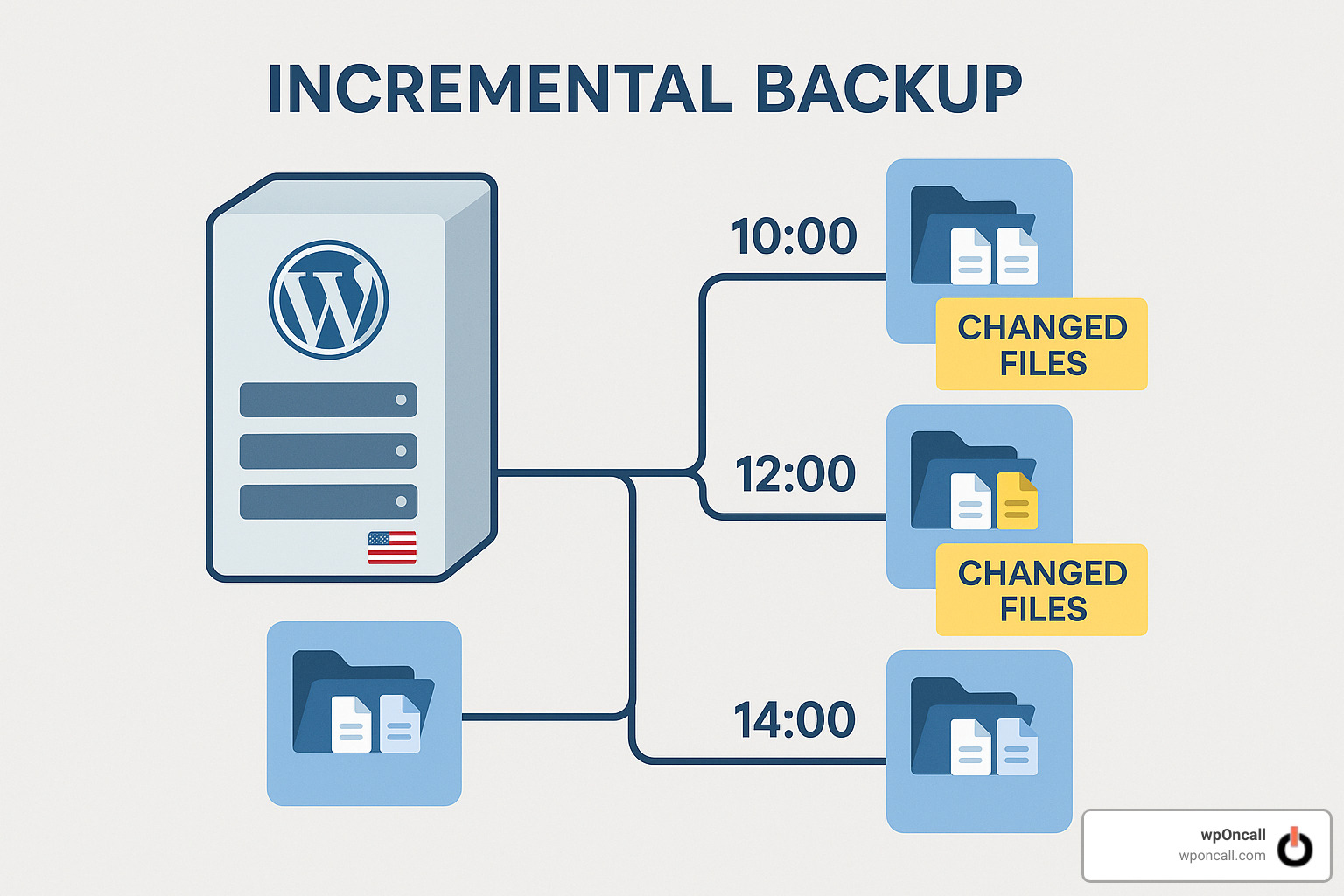
Think of incremental backups like this: instead of taking a complete snapshot of your house every day, you just photograph the rooms where something changed. Smart, right? These advanced plugins only store what’s new or modified since your last backup, which is a game-changer for larger websites.
The beauty of this approach is how it slashes both server load and storage needs. Your site stays speedy even during backup processes, and you don’t need endless storage space for redundant files. Internal testing from several premium vendors shows that incremental technology can cut backup times by up to 90% for larger sites—a massive difference when every second of performance counts.
Why This WordPress Backup Solution Fits High-Traffic or WooCommerce Sites
If you’re running an e-commerce store or managing a busy site with constant updates, premium backup plugins aren’t just nice to have—they’re essential protection for your digital business.
E-commerce sites benefit tremendously because real-time order data gets captured immediately. Imagine losing even an hour’s worth of customer transactions during your busiest sales day! With premium incremental backups, that nightmare scenario becomes virtually impossible.
Sites with heavy traffic experience constant database modifications too. Every product view, cart addition, user registration, or comment creates database writes that need protection. Premium solutions ensure these frequent changes are safely backed up without taxing your server.
The resource efficiency of incremental backups is particularly valuable for busy sites. Traditional full backups might consume so much processing power that your customers notice slowdowns. One of our wpONcall clients who runs a thriving online store told us: “Before switching to a premium backup solution, our daily backups would slow the site to a crawl for about 20 minutes. Now with incremental backups, customers don’t even notice when backups are running.”
Most premium plugins also offer multiple destination support, allowing you to automatically send your backups to several different cloud storage services simultaneously. This creates the perfect redundancy strategy—your precious data safely stored in multiple locations with minimal effort on your part.
Many premium vendors even include a modest amount of integrated cloud storage with every license, though most site owners will want to use additional storage options for true redundancy.
For mission-critical WordPress sites handling customer data and transactions, investing in a premium WordPress backup solution with incremental technology offers both peace of mind and tangible performance benefits that quickly justify the annual subscription cost.
4. Cloud SaaS Backup Platforms
For mission-critical websites where downtime equals significant revenue loss, dedicated SaaS (Software as a Service) backup platforms offer the highest level of protection and simplicity.
These services operate independently from your WordPress installation, connecting via API to create “zero-footprint” backups that don’t impact your server resources.
Key Advantages
Cloud backup platforms offer several unique benefits:
- Restore anywhere: Quickly migrate or restore to any host
- Malware scanning: Many include security scanning with backups
- Staging environments: Test changes before pushing to production
- Independent dashboard: Access backups even if WordPress is completely down
- Unlimited storage: No need to worry about backup size or retention
One leading SaaS provider even promises a 100% restore rate for WordPress backups and provides unlimited off-site storage on its own servers at no additional cost.
“After trying several backup plugins, we switched all our client sites to a cloud SaaS solution,” shares our team at wpONcall. “The independent dashboard means we can restore sites even when they’re completely inaccessible, which has saved our clients countless hours of downtime.”
5. Developer-Friendly Git/CLI Backups
For development teams and agencies managing multiple WordPress sites, command-line and version control-based backup solutions offer powerful flexibility and automation options.
These approaches leverage tools like WP-CLI (WordPress Command Line Interface) and Git version control to create highly customizable backup workflows.
Ideal Use Cases
Developer-centric backup approaches work best for:
- Agencies managing many sites: Standardized backup processes across all clients
- WordPress multisite installations: Complex site structures requiring custom handling
- Sites with custom code: Version control integration for both code and content
- Automated deployment pipelines: Integration with CI/CD workflows
For instance, many premium backup plugins now include WP-CLI integration, allowing developers to manage backups from the command line with simple commands such as wp backup start and wp backup restore.
A developer client in Santa Rosa told us: “We use Git for all our theme and plugin code, combined with automated database backups via WP-CLI. This gives us granular control over what we backup and when, plus the ability to script our entire disaster recovery process.”
While this approach requires technical expertise, it offers the best flexibility for complex WordPress environments.
6. Manual cPanel & FTP Methods
Sometimes, going back to basics is exactly what you need. Think of manual backups as that trusty flashlight you keep in a drawer—not your everyday go-to, but invaluable when other methods fail. Even if you use automated WordPress backup solutions, knowing how to create manual backups gives you an extra layer of confidence.
Manual backups typically involve a two-part process: grabbing your database through phpMyAdmin and downloading your files via FTP. It’s like packing for a trip—you need both your clothes (files) and your itinerary (database) to have everything you need.
When I help clients learn this process, I always emphasize that the database contains the heart of their site—every post they’ve written, every comment visitors have left, and all those carefully crafted settings. Meanwhile, the file backup captures themes, plugins, and those irreplaceable uploaded images.
Best Practices for Manual Jobs
I’ve seen too many site owners learn the hard way that simply having a backup isn’t enough—how you manage those backups matters tremendously.
Create three copies of everything following what I call the “sleep well at night” approach—three total backups, stored in at least two different places (like your computer and a cloud drive), with one definitely stored somewhere off-site. This strategy has saved several of our wpOncall clients when unexpected disasters struck.
Verify checksums after creating your backups. This might sound technical, but it’s just a way to confirm your files aren’t corrupted. Think of it as double-checking that you’ve locked the door before leaving home.
Test periodically by actually restoring from your manual backups in a staging environment. At wpOncall, we’ve encountered many clients who thought they were protected, only to find their backup process had subtle flaws when they actually needed to restore.
Document the process clearly. I recommend keeping a simple text file with step-by-step instructions. Your future self (or team member) will thank you when trying to restore under pressure.
Use descriptive filenames that include dates and site information. When I’m helping clients recover sites, there’s nothing more frustrating than trying to guess what “backup3.zip” might contain!
“I always take a manual backup before making major changes to a client site,” our lead developer at wpOncall often says. “It’s an extra safety net that has saved me more than once when automated systems failed.”
While manual backups require more effort than automated solutions, they provide an best sense of control. They’re particularly valuable before major site changes, when switching hosts, or as a supplemental layer of protection alongside your automated WordPress backup solution.
On-Site vs Off-Site Storage
Where you store your backups might be the single most important decision in your entire backup strategy.
On-site storage (backups kept on your hosting server) offers convenience and speed. Your backups are right there when you need them, with no downloading required. There’s usually no additional cost, and setup is typically straightforward.
However, on-site backups have a critical weakness—they’re vulnerable to the same disasters that might affect your main site. Server failure? Hosting company issues? Malware infection? Your backups could be compromised right along with your site.
Off-site storage shines by keeping your backups safely away from your main server. If your entire hosting account goes down, your backups remain secure and accessible. Many services offer unlimited storage capacity and geographic redundancy (storing copies in multiple physical locations).
The trade-off is that restoration can take longer since files need to be downloaded first, and there may be additional storage costs. As our team at wpONcall often tells clients: “The few extra dollars for off-site storage will seem like the best investment you ever made if disaster strikes.”
High-quality backup plugins and SaaS platforms integrate with practically every major storage service imaginable—Dropbox, Google Drive, Amazon S3, Rackspace, FTP, and many others—making it easy to implement a robust off-site strategy.
Where is the safest place to store backups?
When it comes to backup storage, I’m a big believer in the 3-2-1 rule—it’s simple but incredibly effective:
- Keep 3 total copies of your data
- Store them on 2 different types of media
- Keep 1 copy off-site (away from your primary server)
For a typical WordPress site, this might look like:
1. Your hosting provider’s automatic backups (convenient but on the same infrastructure)
2. A plugin-based backup stored in cloud storage like Google Drive or Amazon S3
3. Periodic manual backups downloaded to your local computer or external drive
This approach protects you from almost any disaster scenario. If your host has issues, you have cloud copies. If both your host and the cloud provider have problems (rare but possible), you have your local copy.
Many premium solutions make this easier by including a small amount of their own cloud storage with every license, giving you that crucial off-site component without extra configuration.
Conclusion
Having a reliable WordPress backup solution isn’t just checking a technical box on your to-do list—it’s essential business insurance for your digital presence. When that inevitable rainy day comes (and trust me, it will), the right backup strategy is the umbrella that keeps your website safe and dry.
Throughout my years helping website owners recover from disasters, I’ve seen the relief on clients’ faces when we tell them, “Yes, we have a backup from yesterday,” and the devastation when we have to say, “I’m sorry, there’s no recent backup available.”
The path to backup peace of mind comes down to these fundamental principles:
-
Choose what fits your site: A small personal blog needs different protection than a busy e-commerce store processing hundreds of orders daily. Your backup solution should reflect your site’s size, traffic patterns, and how frequently your content changes.
-
Don’t put all your eggs in one basket: The most resilient WordPress sites use multiple backup methods. Perhaps your host provides daily snapshots, but you also run a premium plugin sending backups to Google Drive. This redundancy might seem excessive until the day your host has a catastrophic failure.
-
Keep backups off-site: When your server crashes, having your only backup on that same server is like keeping your spare house key… inside your locked house. Off-site storage ensures you can recover even if your entire hosting account becomes inaccessible.
-
Set it and (mostly) forget it: Automated, scheduled backups remove the human element—which is often the weakest link in any backup strategy. Once properly configured, your backups should run silently in the background, protecting your site day and night.
-
Actually test your restores: A backup file is worthless if you can’t use it to bring your site back to life. Periodically testing the restore process ensures you’re not just collecting unusable files.
-
Consider expert management: For business-critical websites, having professional oversight adds an extra layer of security. At wpOncall, we’ve rescued countless sites because our team monitors backup processes and jumps into action at the first sign of trouble.
I’ll never forget the client who called us in tears because her e-commerce site had been hacked, with six months of product listings and customer orders seemingly lost forever. Because she had our WordPress backup solution in place, we restored her site within 45 minutes, and she didn’t lose a single order or product.
The most expensive backup is always the one you never made. When you consider the cost of rebuilding your site from scratch—the countless hours of work, the potential loss of customer data, the damage to your reputation—investing in proper backups suddenly seems like the bargain of the century.
At wpOncall, our WordPress maintenance services include comprehensive daily backups with secure off-site storage. Our clients sleep better knowing their digital businesses are protected around the clock, with experts monitoring their backup processes and ready to spring into action if needed.
For more information about our comprehensive WordPress Backup Services, reach out to our team of WordPress experts in Santa Rosa, CA. We’re here to help you implement the perfect backup strategy custom to your specific needs—because your website deserves nothing less than complete protection.

